6 min read · Pleroma Commerce · Tutorial
In short
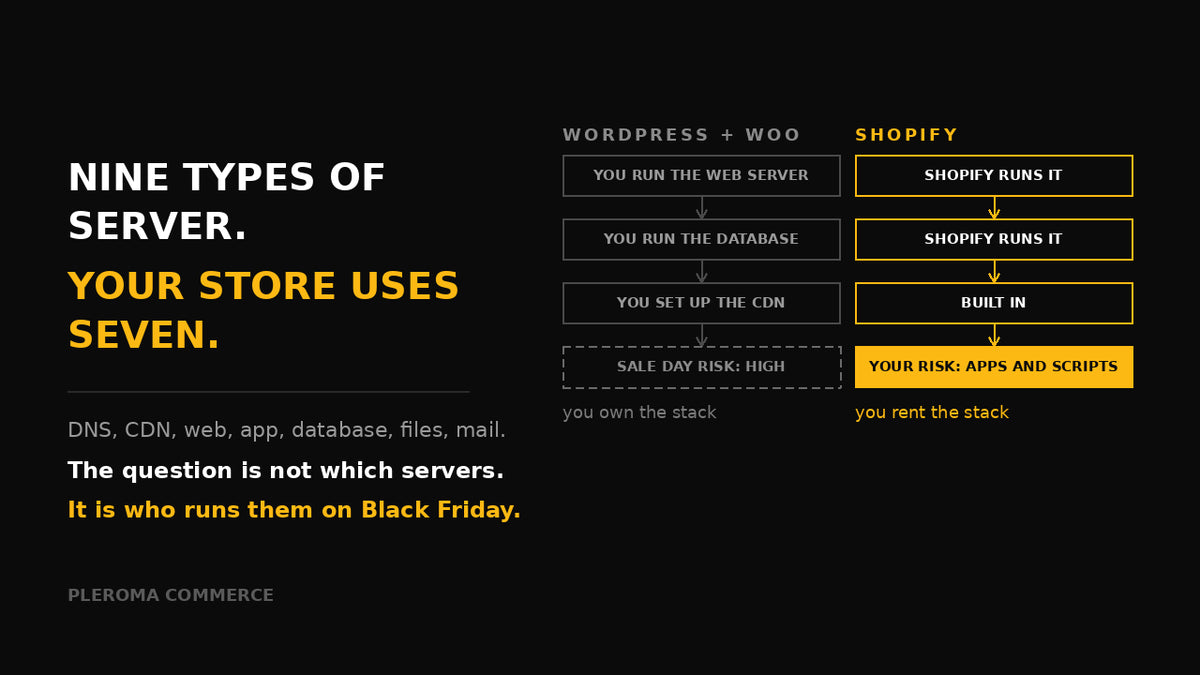
Nine types of server show up in every IT infographic, but an online store uses six or seven of them every time someone buys: DNS finds the store, a proxy or CDN serves images and filters attacks, the web and application servers build the page and run the cart, the database holds products and orders, file storage keeps images, and a mail server sends the order confirmation. The difference between WordPress and Shopify is who runs them. On WordPress with WooCommerce you (or your host) run almost the whole stack. On Shopify you rent it, and your job shrinks to the domain, your mailbox and the apps you install.
In this article
Infographics listing "types of server" are everywhere: database, file, DNS, application, print, mail, web, proxy, game. They are accurate and almost useless to a store owner, because they never say which of these your shop depends on, or who is responsible when one of them fails on Black Friday.
This guide answers that, with the two platforms most of our clients start from: WordPress with WooCommerce, and Shopify.
One order, seven servers
Follow one customer from typing your address to receiving the order confirmation. Every numbered box is a separate server role, even when several of them live on the same physical machine.
Diagram: the path of a single order through the server roles
Note what is missing: the print server and the game server. A print server matters in your warehouse, where it sends shipping labels to label printers. A game server has nothing to do with a store.
The nine types in e-commerce terms
The same nine types from the infographic, translated into what they do for an online store:
WordPress and WooCommerce: you run the stack
WordPress is software you install on a server. To run it you need a host that supports PHP, a MySQL or MariaDB database and HTTPS, and WordPress recommends Apache or Nginx as the web server[1]. WooCommerce adds the shop on top.
In practice that means you, or the hosting company you pay, are responsible for the web server, the PHP application with every plugin, the database, the files on disk, backups, security updates and caching. Two things regularly catch WooCommerce stores out. The database slows down as orders and sessions pile up, which shows first at checkout. And WordPress sends email through the server by default, so order confirmations land in spam until you connect a proper sending service with the right DNS records.
The upside is control: any plugin, any hosting, any custom code, direct access to the database.
Shopify: you rent the stack
Shopify is a hosted platform. The web servers, the application, the database, file storage and the CDN are all Shopify's, shared across every store and scaled by Shopify. Your part starts at DNS: to use your own domain you point its A record to 23.227.38.65 and the www record (CNAME) to shops.myshopify.com[2].
Diagram: the same seven layers, and who is responsible for each
Two things stay yours on Shopify. First, your mailbox: Shopify sends order emails, but the inbox for your domain lives with a separate provider. Second, apps: each app you install runs on its developer's servers, so every app is another server your store depends on. Most Shopify speed problems are not Shopify; they are apps and third-party scripts.
Who handles what
The same picture as a table you can keep next to your hosting invoice:
| Server role | WordPress + WooCommerce | Shopify |
|---|---|---|
| DNS | You / registrar | You / registrar |
| Proxy / CDN | You set it up | Shopify |
| Web server | Host | Shopify |
| Application | You + plugin authors | Shopify + app developers |
| Database | Host / you | Shopify |
| File storage | Host / you | Shopify |
| Order emails | SMTP service | Shopify |
| Mailbox | Email provider | Email provider |
| Label printing | Your warehouse | Your warehouse |
Sale day: where the risk sits
The difference shows most clearly on a sale day, when traffic jumps several times over in an hour. This is our assessment of where the risk of a slowdown or outage sits:
Heat map: where a traffic spike is most likely to hurt
WooCommerce assumes shared or mid-range hosting without load testing. A well-sized, cached WooCommerce setup moves most cells down a level.
On WooCommerce the pressure lands on the application and the database: every visitor with a cart is a PHP process and a set of database writes. On Shopify the platform absorbs the spike, and what remains yours is the weight of your apps and scripts.
What to check in your own store
Whichever platform you are on, these six checks take an afternoon and prevent most of the problems above:
- Know where your DNS lives. Who has the login to the registrar, and is two-factor authentication on? Losing access to DNS means losing the store and the email at once.
- Authenticate your email. SPF, DKIM and DMARC records on the domain, so order confirmations and newsletters reach the inbox, not spam.
- Put a CDN in front of WordPress. Images and static files served from the edge take most of the load off your host.
- Back up the database daily and test a restore. A backup you have never restored is a hope, not a backup. Shopify handles this for the platform; app data is up to each app.
- Update WordPress on a staging copy first. One plugin update can break checkout; find out on a copy, not on customers.
- Audit your Shopify apps. Remove what you do not use. Every app is another server and usually another script on every page.
Pleroma Commerce
Outgrowing WordPress, or not sure your stack will hold on sale day?
We audit the whole path from DNS to order email, and move stores from WooCommerce to Shopify without losing SEO or order history.
Store and channel audit → · Replatform migration →Sources
- WordPress.org, "Requirements" (PHP, MySQL or MariaDB, HTTPS; Apache or Nginx recommended). wordpress.org
- Shopify Help Center, "Connect your third-party domain to Shopify manually". help.shopify.com